
E-mail address
[email protected]
WORKLOG & TIMESHEETS
Every hour,connected to the work.
Record working activity and make resource utilization visible.
Document working hours associated with tasks, projects, and operational activities. Keep dates, task details, time entries, and daily notes together so employees and managers can review the work behind the recorded hours.
Task-linked hoursDaily work contextResource utilization
Timesheet
Recorded time, connected to assigned work.
October 2026
Recorded time
Day total3 h 15 min
Shown total3 h 15 min
No entries match your filters.
Try another search or reset the filters.
No time recorded for this day.
Choose another date in the calendar.
Review delivery checklist
- Task ID
- WT001
- Task type
- Project
- Context
- Customer portal
- Date
- Start time
- End time
Duration1 h 30 min
Coordinate supplier visit
- Task ID
- WT002
- Task type
- General
- Context
- Facilities service
- Date
- Start time
- End time
Duration0 h 45 min
Prepare weekly report
- Task ID
- WT003
- Task type
- General
- Context
- Operations
- Date
- Start time
- End time
Duration1 h 0 min
Review project brief
- Task ID
- WT004
- Task type
- Project
- Context
- Customer portal
- Date
- Start time
- End time
Duration1 h 0 min
Prepare weekly report
- Task ID
- WT003
- Task type
- General
- Context
- Operations
- Date
- Start time
- End time
Duration1 h 15 min
Review delivery checklist
- Task ID
- WT001
- Task type
- Project
- Context
- Customer portal
- Date
- Start time
- End time
Duration1 h 30 min
Prepare weekly report
- Task ID
- WT003
- Task type
- General
- Context
- Operations
- Date
- Start time
- End time
Duration0 h 30 min
Review project brief
- Task ID
- WT004
- Task type
- Project
- Context
- Customer portal
- Date
- Start time
- End time
Duration1 h 0 min
Sample time entries. Totals are calculated from their time slots.
Choose a day. Review the work behind its recorded time.Illustrative workspace · Lijix
EXPLORE THE CAPABILITIES
Useful detail behind recorded hours.
Record working activity and make resource utilization visible. Explore the capabilities and the business information they bring together.
Timesheets
Build clear daily and monthly timesheets.
Capture work hours by day, task, activity, and category so teams can review time usage without chasing manual updates.
- Daily Timesheets
Daily, weekly, and monthly views
- Duration Tracking
Track hours by task and activity
- Daily Summary
Total logged hours at a glance
- Search Records
Find entries for review and approval
WEB & MOBILE
On mobile: Add hours by day and task; Track actual work effort clearly; Keep web, iOS, and Android aligned.
Timesheets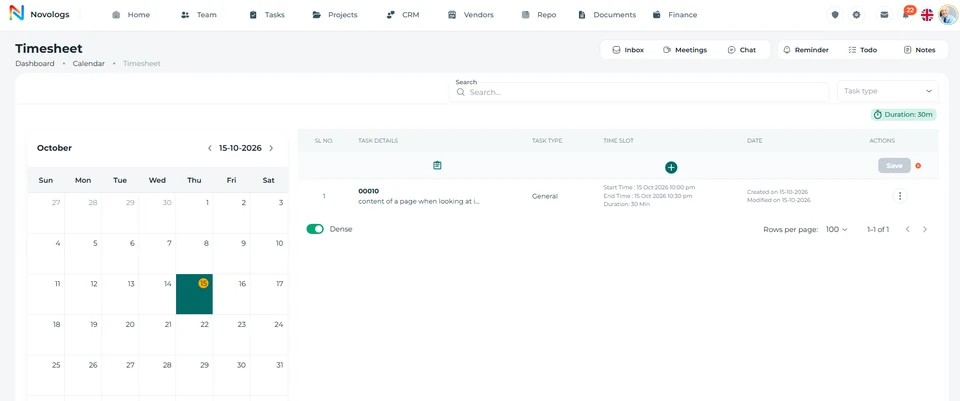 View screenshot
 View screenshot
Working dates
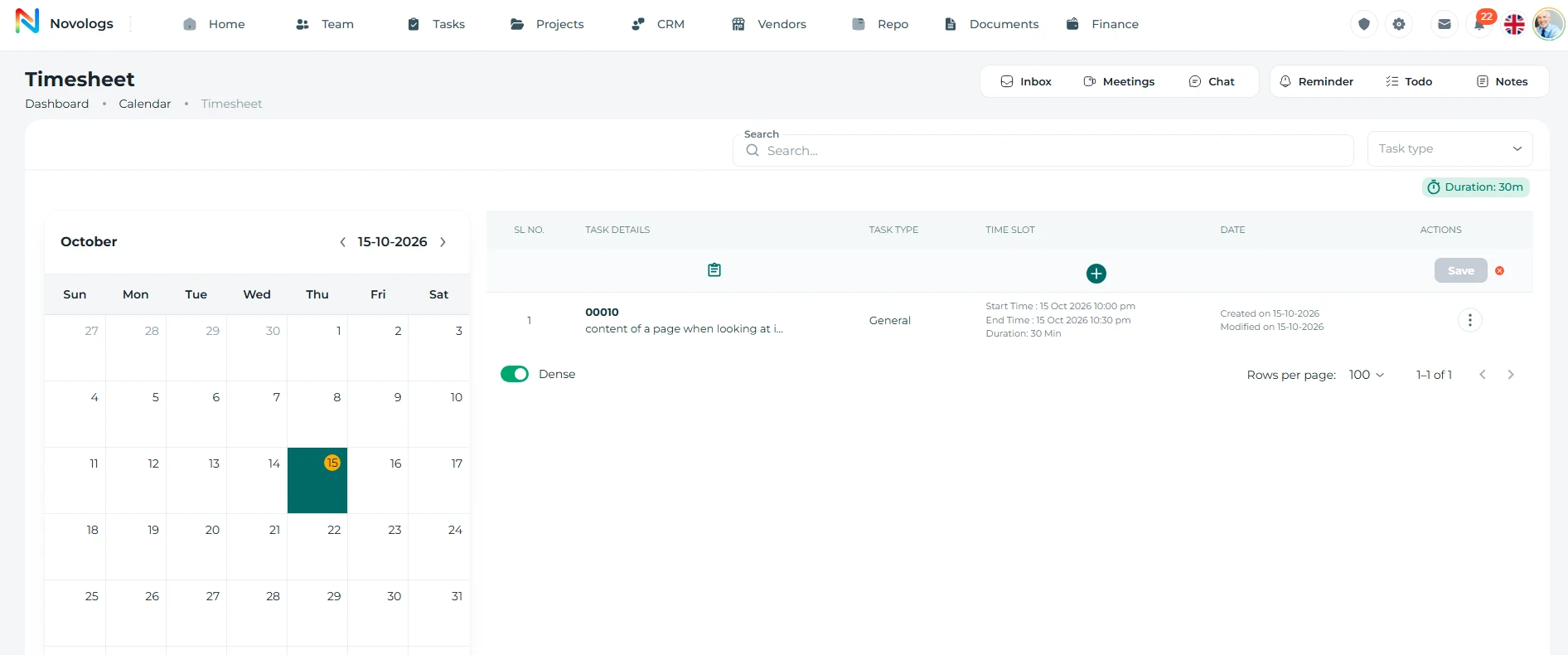
Select a date and manage timesheet entries from one calendar view.
Use the monthly calendar to choose a date, review task-based time rows, filter by task type, and save timesheet entries from a structured workspace.
- Monthly Calendar
Select the working date from the calendar
- Timesheet Rows
Track task details, type, slot, and date
- Search Entries
Search existing timesheet records quickly
- Task Type Filter
Filter timesheet rows by task type
WEB & MOBILE
On mobile: Review timesheet entries by selected date; Check task details, type, time slot, and date; Find existing timesheet records quickly.
Daily worklogMonday · Illustrative entries
Mon12Tue13Wed14Thu15Fri16
Campaign reviewProject activity · Morning2 hours
Prepare reportTask activity · Afternoon3 hours
Vendor follow-upContract coordination1 hour
Daily note
Campaign approval is pending. Follow up with the project owner tomorrow.
Illustrative workspace · A view of working dates in your workspace
Task time entries
Add task-based time entries to the selected timesheet date.
Create timesheet rows with task details, task type, time slot, and date, then save the entry directly from the timesheet table.
- Task Details
Add the work item or task information
- Task Type
Select the correct task category
- Time Slot
Set the working time period
- Save Entry
Save each timesheet row after adding details
WEB & MOBILE
On mobile: View task details and task type; Check assigned time period; Confirm the date linked to each entry.
Time-slot selection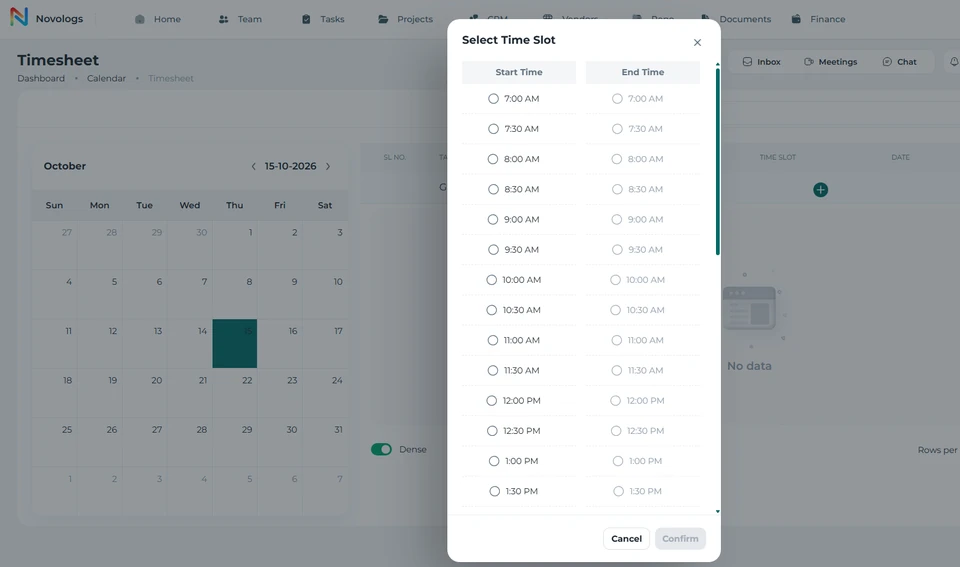 View screenshot
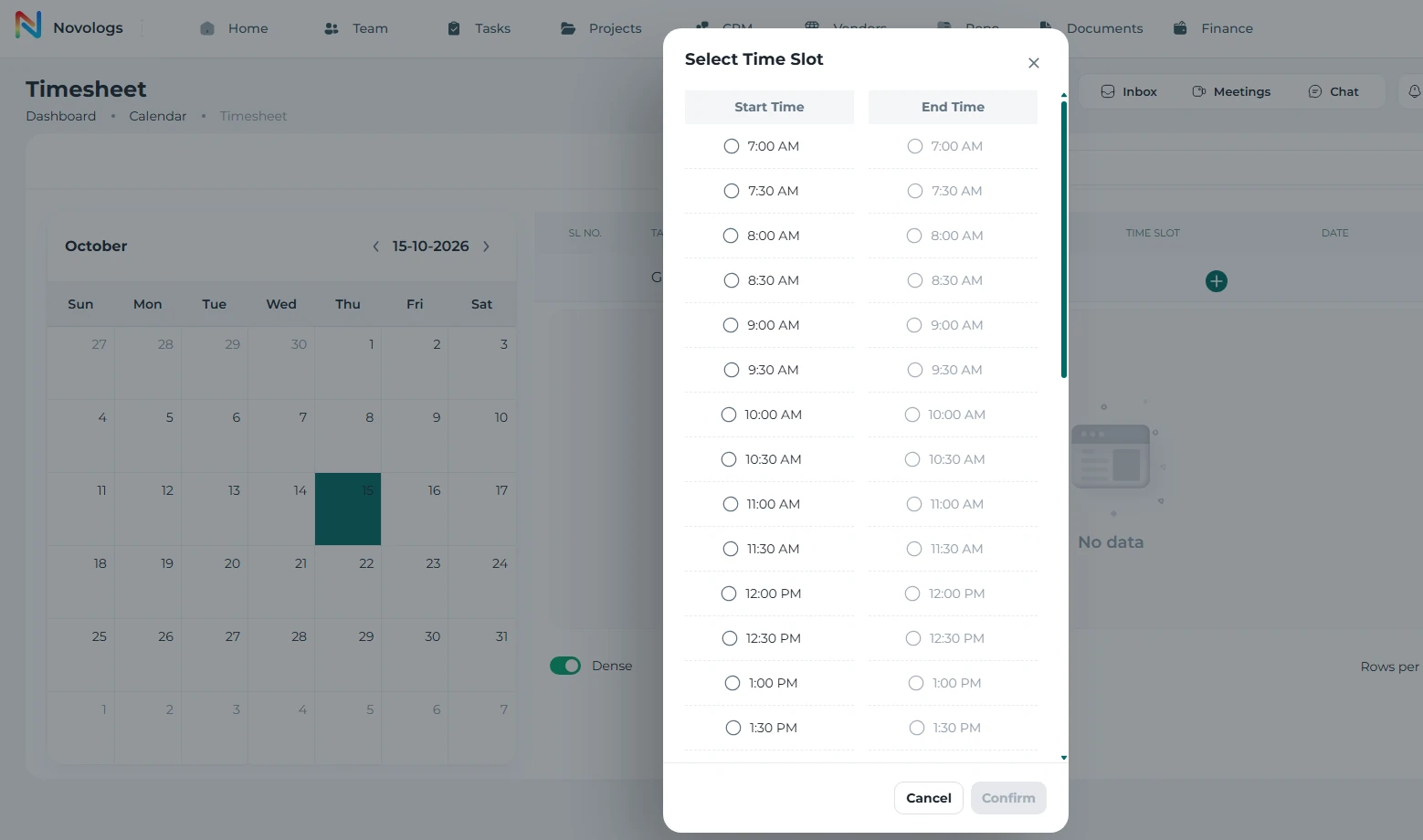 View screenshot
Search & filter
Find timesheet entries faster from the web dashboard.
Use the web search field to locate timesheet records and filter entries by task type, helping users quickly narrow down task details, time slots, and dates.
- Web Search
Find records by task details or related text
- Task Type Filter
Filter entries using the task type dropdown
- Filtered Rows
Review only matching timesheet rows
- Date Context
Search within the selected timesheet date
Daily worklogMonday · Illustrative entries
Mon12Tue13Wed14Thu15Fri16
Campaign reviewProject activity · Morning2 hours
Prepare reportTask activity · Afternoon3 hours
Vendor follow-upContract coordination1 hour
Daily note
Campaign approval is pending. Follow up with the project owner tomorrow.
Illustrative workspace · A view of search & filter in your workspace
Daily notes
Keep work notes connected to the selected timesheet date.
Use the My Notes tab to record remarks, blockers, follow-up points, and daily notes while staying inside the same timesheet workspace.
- Daily Notes
Add notes for the selected workday
- Blockers
Capture pending items and work blockers
- Follow-up Actions
Record next steps after work updates
- Search Notes
Find saved notes from the notes view
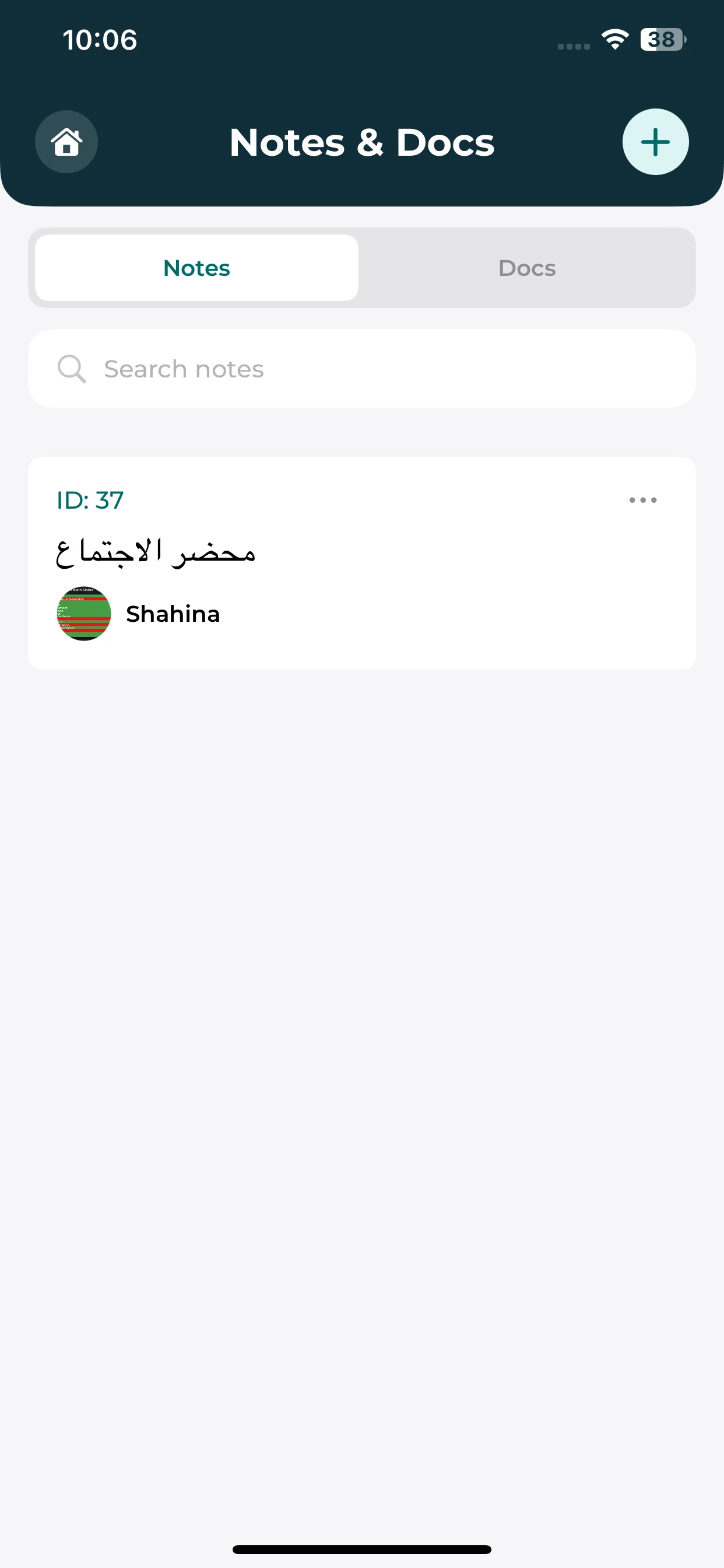
Daily notes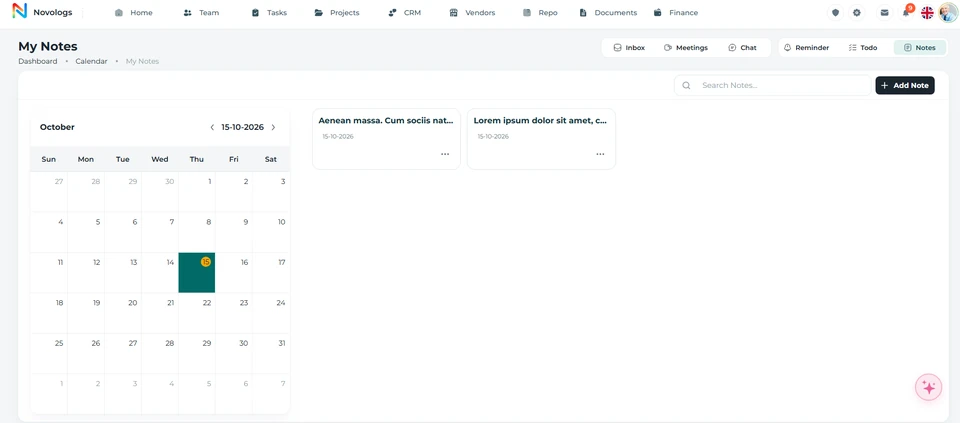 View screenshot
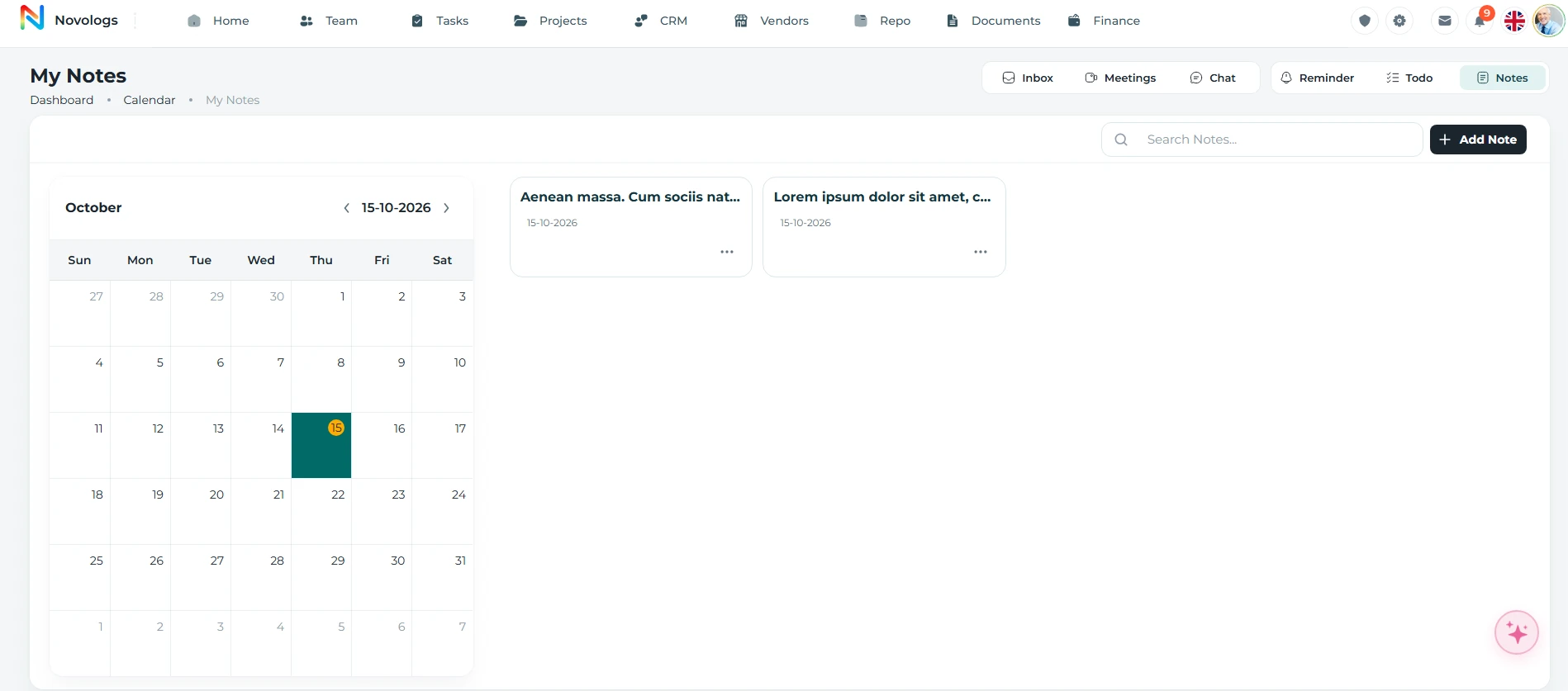 View screenshot
MOBILE / Daily notes
Keep a note of what matters.
Use the Notes area to keep a short record of daily work and follow-ups.
Personal notes
Review the note entries shown in the Notes tab.
Search notes
Use the note search field to find a recorded item.
Daily context
Keep written context alongside your other working tools.
Save & manage
Add, save, and manage timesheet rows with clear actions.
Use row actions to add task time entries, save timesheet details, remove incomplete rows, and keep the selected date’s timesheet clean and organized.
- Add Row
Add a new task time entry to the table
- Save Entry
Save the completed task time row
- Remove Row
Clear or remove an incomplete entry
- Manage Rows
Keep all timesheet entries organized
WEB & MOBILE
On mobile: Create a new timesheet row; Save completed timesheet details; Clear incomplete or unwanted entries.
Daily worklogMonday · Illustrative entries
Mon12Tue13Wed14Thu15Fri16
Campaign reviewProject activity · Morning2 hours
Prepare reportTask activity · Afternoon3 hours
Vendor follow-upContract coordination1 hour
Daily note
Campaign approval is pending. Follow up with the project owner tomorrow.
Illustrative workspace · A view of save & manage in your workspace
FROM INFORMATION TO ACTION
From work done to hours recorded.
Bring the right information, people, and next actions together in one connected business environment.
- 01
Select the date
Choose the workday whose activity you are recording.
- 02
Add the activity
Associate task details, a type, and a working time period.
- 03
Keep useful notes
Record progress, blockers, or follow-up information.
- 04
Review the hours
Use the entries to understand activity and resource allocation.
A FEW USEFUL DETAILS
Working with
recorded time.
Practical details about recorded time and the connected working environment.
Where do timesheets fit in Lijix?
Timesheet management connects employee working hours with tasks, projects, and operational activities.
Can notes be linked to the selected date?
Keep daily notes, blockers, and follow-up information in the working-date context.
How do hours support task costing?
Recorded hours can be combined with configured rates and supported cost inputs in Task Management.
How do managers use recorded hours?
Use task and project hours alongside assigned work, completion status, and operational reports to understand workload and resource utilization.
ONE CONNECTED PLATFORM
Explore the rest
of your workspace.
Follow the people, work, information, and business relationships connected to this module.

Contact
Let’s Connect
Your Business
Your Business
Phone number
+971 4 235 0900
Office Address
City Avenue BuildingDubai, UAE
Business Hours
Monday to Friday: 9:00 AM to 6:00 PMSunday: Closed